+
What is
Tecly
Tecly is an archive of financial transactions where you
can create and manage a sources-costs budget with detailed views and
charts.
+ Tecly is universal
You can use
Tecly on your iPhone, iPad and Mac.
Tecly
uses your Apple Id to automatically synchronize your budgets and any
purchase on all your devices.
+ First start of
Tecly
At startup,
Tecly shows you some slides for a general
overview of the app.
+ Tecly first setup
Just out of the slides the names of your accounts are sufficient for
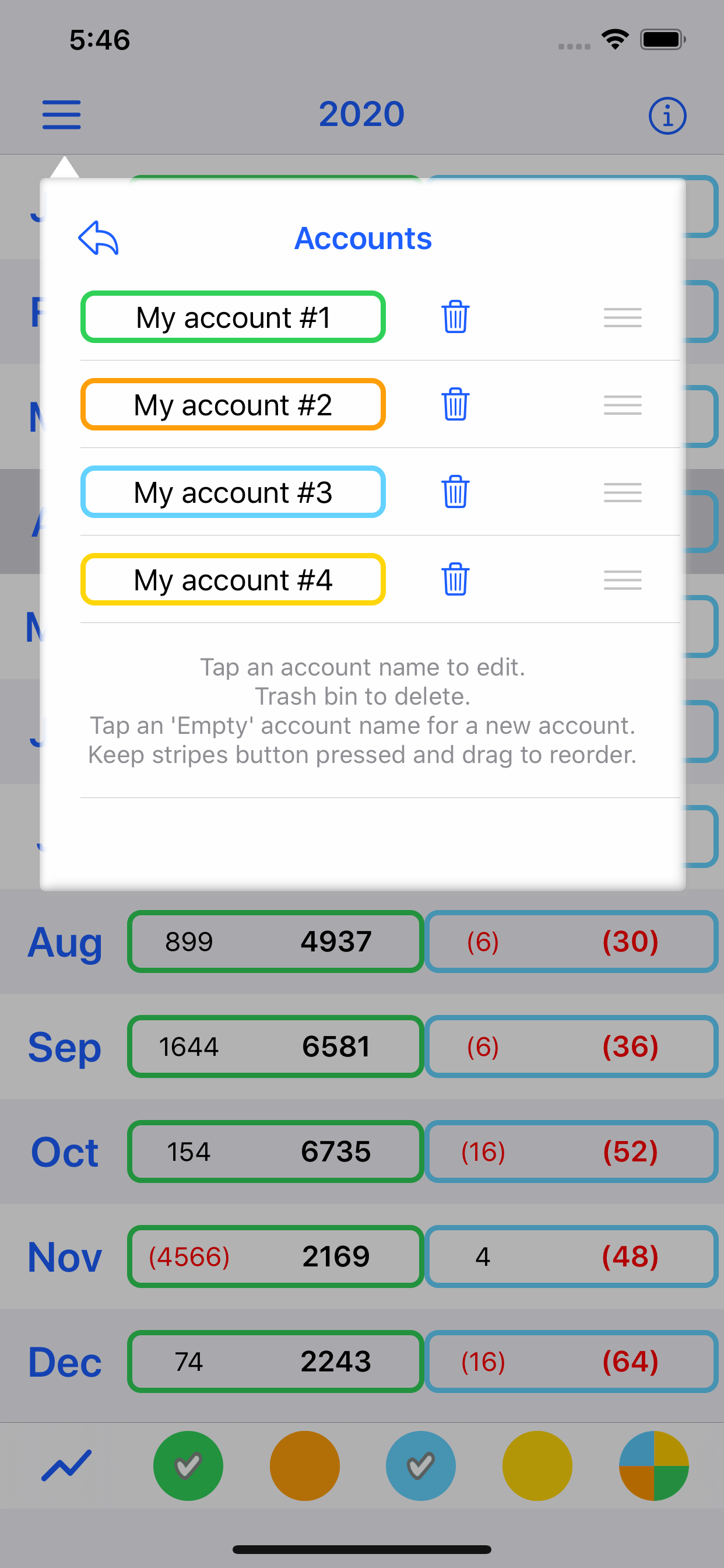
setup: up to 20. You can choose name, color and order. Tap the
••• button which has various options, including:
- Accounts: for names, color and order
- Search transactions
- Display options: decimals and negative values
- Sharing: status and turning iCloud sync on/off
- Archives and backups: archive management menu to save the years as you
use Tecly and be able to reload them from the
archive. You can also later edit and reorder the accounts.
+ Build your first budget
Tecly has two main views:
Tecly, just downloaded, presents the current year at
zero, with all twelve months each containing only one transaction,
pre-set, with the initial balance at zero. Select the view of the
month you are currently in: you can start adding transactions to the
accounts that interest you there. For each transaction you have a
description and a date for which you enter movements on the accounts
such as uses/costs (-) or sources/revenues (+): transactions already
executed can be marked as 'Done'. Those foreseen as budget will leave
them unmarked. By doing so, in the month view, you will have an eye on
what has already happened and what you foresee that will happen and
when, in the near future. You can edit the initial balance only on the
first transaction of January 1st of the year. Transactions on
each month's first day are pre-loaded with the balance carried over
from the previous month.
+ Selection of visible accounts
In the year view you find the colored buttons for your favorite
accounts: you can pin up to 4 of them among your accounts (up to 20)
to keep them always at hand. If checked, the account is visible in
the chart and totals, hidden otherwise. The Σ button shows the sum
of just the selected favorites; the "All" button shows the total of
all your accounts. All very immediate with a single tap or click.
+ More details for editing transactions
The opening of a transaction editing form takes place on all devices
simply with a tap or click on the transaction row. To delete a
transaction just swipe the row left on iPhone/iPad, or use the swipe
of your finger on the Apple Magic Mouse on the Mac. In the transaction
editing form there are also two 'Repeat' checkboxes that you can mark
active before confirming the transaction: a 'Weekly' checkbox and a
'Monthly' checkbox. These allow you to fill the whole year with
periodic sources (incomes) or uses (costs). Another very useful
checkbox is the 'Active' checkbox: it is used to answer the question
'What if?'. If the checkbox is not checked, the transaction is
inactive and will appear greyed out in the month: you can thus see the
effect that the inactive transaction has and the future consequences.
Just check the 'Active' check box again to reactivate the transaction.
A context menu is also provided for transactions: on the iPhone and
iPad, keep the transaction pressed for a few seconds. On Mac, use the
right mouse button on the transaction, or use the keyboard [ctrl] key
with a mouse click. From the menu that opens you can select the
editing form or copy/cut/paste the transaction, or delete it.
+ Charts
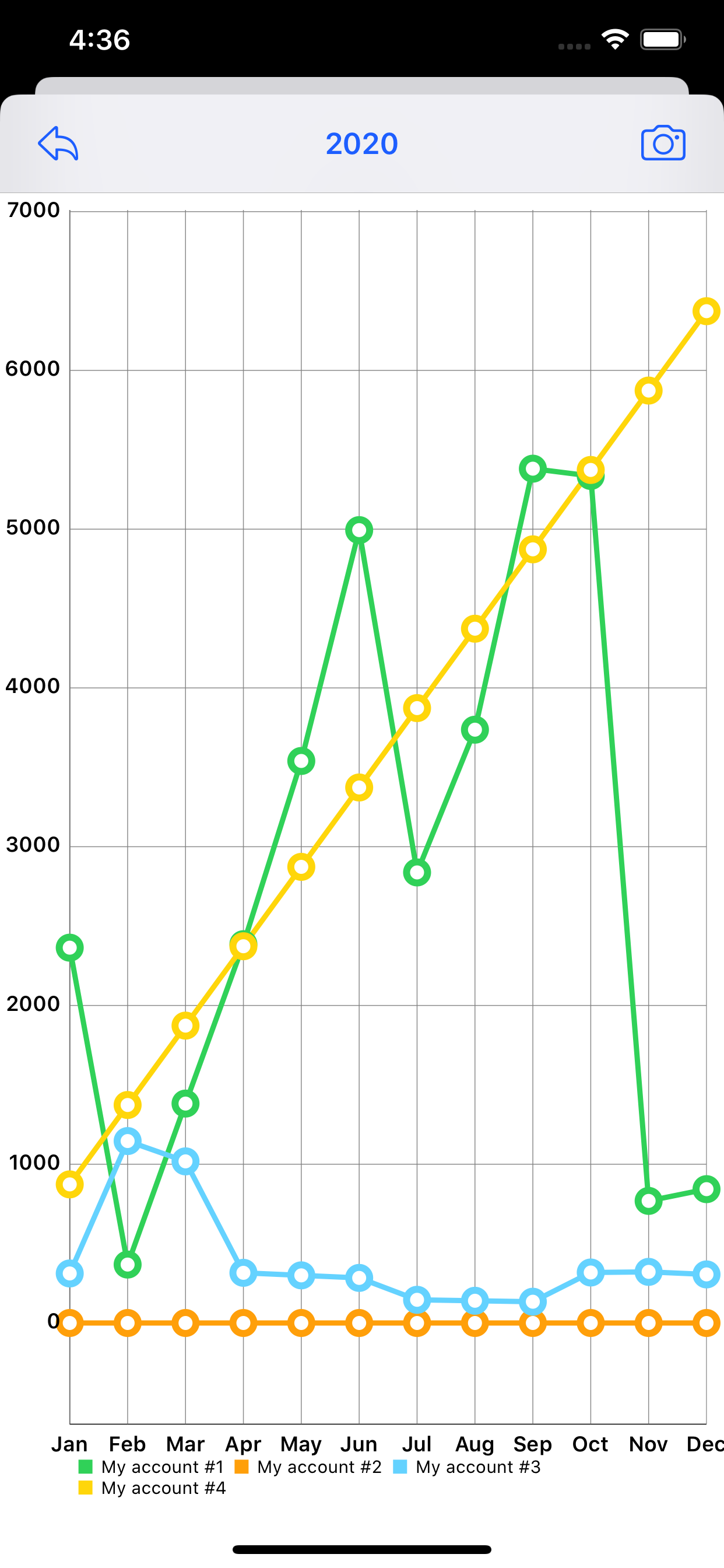
At any time you can view a chart that shows you the trend of the
accounts both for the whole year and for each month. Accounts are
tracked using their colors.
+ Tecly is freemium
Using
Tecly is free, with a limit on how many transactions
you can add per year — no more time-based trial. Remove the limit
anytime, with a one-time in-app purchase or a subscription,
whichever suits you.
Top⇧